An AI chatbot for your Webflow site, added in one line
Corner adds an AI chatbot and live chat to your Webflow site with one line of custom code. It reads your pages and CMS items, answers visitors with sources, and hands chats to you.
Free forever: unlimited live chat and 30 AI conversations a month. No card.
No sign up to try it.
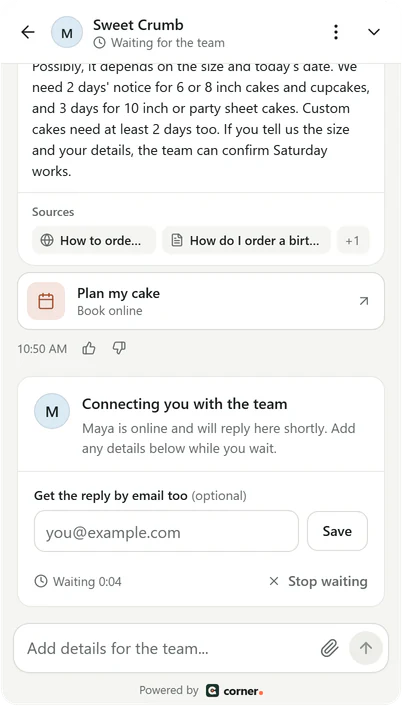
Real Corner messenger, demo bakery.
Steps for Webflow
About five minutes. No coding skills needed: you copy one line and paste it where Webflow takes custom code.
- 01
Copy your line from Corner
Sign up free and type your website. Corner reads it while you watch, and your line is in Settings > Channels > your website > Install with your assistant's key filled in. Not the one who edits the site? Email the line to your web person from the same page.<script src="https://api.getcorner.ai/widget.js" data-bot="YOUR_ASSISTANT_KEY" async></script> - 02
Open Custom code
Open your project's Site settings, then the Custom code tab. - 03
Paste the line into Footer code
Paste your line into Footer code and click Save. Footer code goes on every page, just before the page ends. - 04
Publish your site
Click Publish. Custom code runs on your published site, not in the Designer. Then open your site once, and the Install tab in Corner changes to Live.
The same line works on any website. Guides for WordPress, Shopify, Wix, Squarespace and Lovable, and the Webflow steps in the docs. Every integration
If it doesn't work on Webflow
What to check first, before you write to us.
- You saved the code, but it isn't live
- Custom code changes reach your site when you publish. Save in Site settings, then publish again to your domain.
- Corner reads the wrong address
- If you publish to your webflow.io address and to your own domain, give Corner your own domain. Webflow can tell crawlers to skip the webflow.io address, and Corner follows robots.txt.
- The assistant doesn't know a CMS item
- Corner reads what's published. Draft and archived items, and pages behind a page password, aren't public, so publish the item and re-read your website in Corner.
- Something else sits in the bottom corner
- A sticky button or your cookie banner can cover the launcher. Put the launcher on the other side of the page in Corner's Messenger settings.
What Corner reads on a Webflow site
Corner reads your static pages and CMS collection pages: blog posts, case studies, products, team pages. It reads your sitemap (Webflow can make one for you in your SEO settings) and follows your links.
Content in tabs and in sections that open and close is read too. Pages marked noindex, the cart and checkout are skipped.
How many pages: 100 on Free, 500 on Starter, 2,000 on Builder and 5,000 on Studio.
Webflow notes
Site-wide custom code needs an active Site plan, or a site in a Core, Growth, Agency or Freelancer Workspace. (checked 2026-10-12)
To show the messenger on one page only, paste the line into that page's settings, in the code before the closing body tag, instead of Site settings.
Your Webflow forms keep working as before. People who leave their details in the messenger go to Leads in Corner, not to your form submissions in Webflow, and Corner emails you about each one.
Building for clients in Webflow? The Studio plan gives you an assistant for each client site, and a clean handover. Corner for agencies
What it does and doesn't do
- It answers from your published Webflow pages, with sources.
- It doesn't change your Webflow project or CMS. It only reads your public pages.
- It isn't a Webflow app: you add one line of custom code.
- The assistant is the same on every platform. How the AI chatbot answers
Webflow questions
Ready to see it answer on your Webflow site?
Type your website. Corner reads your pages in about a minute, before you install anything. No sign up.
Free plan, no card. Live chat is unlimited on every plan.