An AI chatbot for your Squarespace site, added in one line
Corner adds an AI chatbot and live chat to your Squarespace site with code injection. It reads your pages, answers visitors with sources, and hands chats to you.
Free forever: unlimited live chat and 30 AI conversations a month. No card.
No sign up to try it.
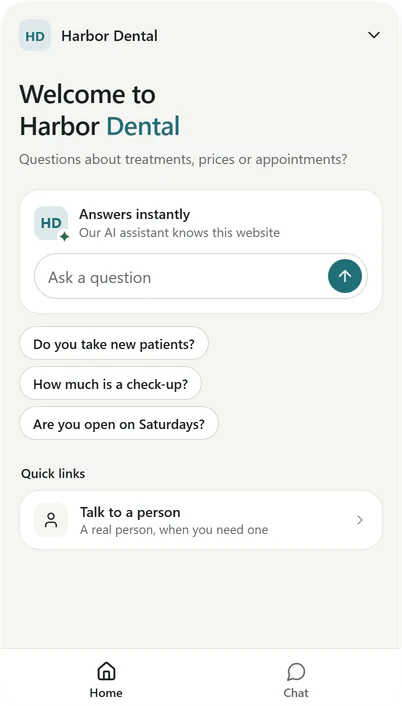
Real Corner messenger, demo dental clinic.
Steps for Squarespace
About five minutes. No coding skills needed: you copy one line and paste it where Squarespace takes custom code.
- 01
Copy your line from Corner
Sign up free and type your website. Corner reads it while you watch, and your line is in Settings > Channels > your website > Install with your assistant's key filled in. Not the one who edits the site? Email the line to your web person from the same page.<script src="https://api.getcorner.ai/widget.js" data-bot="YOUR_ASSISTANT_KEY" async></script> - 02
Open Code injection
In your site's settings, open Code injection. On most sites it's under Developer tools. Squarespace moves menus now and then, so if you don't see it, search your settings for Code injection. - 03
Paste the line into Footer
Paste your line into the Footer box and click Save. Squarespace puts Footer code on every page, just before the page ends. - 04
Check it's live
Open your website once. The Install tab in Corner changes to Live, usually within a minute. The messenger goes live after you confirm your email address, with the code Corner emailed you.
The same line works on any website. Guides for WordPress, Shopify, Wix, Webflow and Lovable, and the Squarespace steps in the docs. Every integration
If it doesn't work on Squarespace
What to check first, before you write to us.
- Corner can't read your site
- New Squarespace sites start private or behind a site-wide password. Corner reads only public pages, so set Site availability to Public first, or add your content to Corner as text until you launch.
- You don't see it while you edit
- The editor may not run code from code injection. Check your site from a private browser window, where you aren't signed in to Squarespace, to see what a visitor sees.
- Code injection isn't there
- It's a paid feature, so the menu is missing on plans without it. See which plan the site is on under Billing.
- You used a Code Block
- A Code Block puts code in one spot on one page. For the messenger on every page, move the line to the Footer box in code injection and delete the block.
- The assistant skips a page
- A page hidden from search engines in its SEO settings is marked noindex, and Corner leaves it out too. Turn that setting off if the assistant should use the page, then re-read your website in Corner.
What Corner reads on a Squarespace site
Corner reads your pages, blog posts, products and events. Squarespace makes a sitemap for your site, and Corner reads it along with your navigation and links.
Pages behind a password and member areas can't be read: Corner reads only what any visitor can see. Cart, checkout and account pages are skipped.
How many pages: 100 on Free, 500 on Starter, 2,000 on Builder and 5,000 on Studio.
Squarespace notes
Code injection is part of the Core, Plus and Advanced plans, and some older plans. (checked 2026-10-12)
Code in the Footer box shows on every page. To leave the messenger off a page, use that page's own code injection instead and remove the line from Footer.
Using Squarespace Scheduling? Add your scheduling page as a quick link in Corner, and the assistant can show it as a button under an answer.
What it does and doesn't do
- It answers from your public Squarespace pages, with sources.
- It doesn't see orders, members or appointments, and doesn't take bookings or payments.
- It isn't a Squarespace extension: you add one line with code injection.
- The assistant is the same on every platform. How the AI chatbot answers
Squarespace questions
Ready to see it answer on your Squarespace site?
Type your website. Corner reads your pages in about a minute, before you install anything. No sign up.
Free plan, no card. Live chat is unlimited on every plan.